YOUR RESELLING WORKSPACE
Your next flip starts here.
A clear view of your items, your next steps, and what you earned.
Recent items
A good photo goes a long way. Start with a full view, then add labels, details, and any wear.
YOUR NEXT FIND
Let’s check your item.
Identify it, review the details, and get ready to list.
Analyze one item and create a ready-to-use listing.
3 Pricing & listing
Sign in before using AI. Your photos and details will stay here.
Checking availability…
Lot review
Review identified items
Confirm what the AI found before saving or listing.
Items in this lot
Lot photos
All source photos stay with the lot and its saved items.
Ask AI about this lot
Refine identifications, quantities, and pricing.
Your FlipperTracker
Item estimate
Item photos
Every photo stays attached when you save this item.
Up to 12 photos per item
Recommended list price
$0
Built with room for a reasonable offer.
LISTING TITLE
DESCRIPTION
Unlimited manual edits3 AI edits remaining for this check
AI LISTING ASSISTANT
Refine this item by chatting
Ask for pricing, title, description, condition, or item-detail changes.
LISTING REMINDERS
Keep listings moving
Get alerted when it is time to lower the price, relist, or follow up on an item with no inquiries.
OFFER & PICKUP CALCULATOR
Know your walk-away number
Add your numbers
OFFER & PICKUP CALCULATOR
Know your walk-away number
Minimum sale offer$0.00Covers costs and your target
Profit at buyer offer$0.000% ROI
Maximum purchase price$0.00Based on likely sale and targets
Pickup value$0.00Profit after travel and time
Uses your likely sale price, entered costs, mileage rate, and time value. Estimates do not guarantee a sale.
LISTING ACTIVITY
Complete item history
Not listed
LISTING ACTIVITY
Complete item history
No activity yet. Add inquiries, offers, price changes, renewals, and buyer notes here.
Your items
My items
Total listed$0.000 active listings
Total sold$0.000 sold items
Total profit$0.00After purchase and repair costs
Active listings0Currently listed
Avg. days to sell—Across completed sales
F
No items yet
Check an item, then save it here with its photos and pricing.
Resale performance
Profit reports
Review revenue, expenses, inventory, and the flips that performed best.
Performance
Profit by category
Highlights
Best and worst flips
Tax records
Completed sales
| Date | Item | Revenue | Purchase | Repairs | Fees | Mileage | Profit |
|---|
Your FlipperTracker
My account
Keep your item photos, listings, and progress together on every device.
FlipperTracker is part of the AppsByAliens family.
Checking your account…
FlipperTracker plans
Choose the right level for your flipping
Start free, step up to Plus, or use Pro for higher-volume reselling.
Free
$0
For occasional finds and testing the workflow.
- 3 AI checks each month
- 5 AI chat messages each month
- 3 AI edits per listing result
- Unlimited manual title and description edits
- 20 cloud-saved items
Plus
Billing setup pending
For regular sellers building a steady inventory.
- 30 AI checks each month
- 50 AI chat messages each month
- 10 AI edits per listing result
- Unlimited manual title and description edits
- 100 cloud-saved items
- Profit reports and inventory tracking
Pro
Billing setup pending
For high-volume resellers who list throughout the month.
- 100 AI checks each month
- 200 AI chat messages each month
- 25 AI edits per listing result
- Unlimited manual title and description edits
- Unlimited cloud-saved items
- Highest usage limits and complete tracking
Private administration
Admin dashboard
Manage members, usage, plans, and customer support.
| User | Joined | Login | Saved | AI usage | Plan | Status | Actions |
|---|
0 users
Page 1 of 1
A LITTLE HELP FOR YOUR NEXT GREAT FLIP
Find the potential.
Track the profit.
Turn item photos into practical resale pricing and listing drafts. Keep your photos, manage your items, and see what you earned.
Start with a free account—no card needed. Verify your email, then sign in. Explore the sample before joining.
Part of the AppsByAliens family ↗ Your next great findEXAMPLE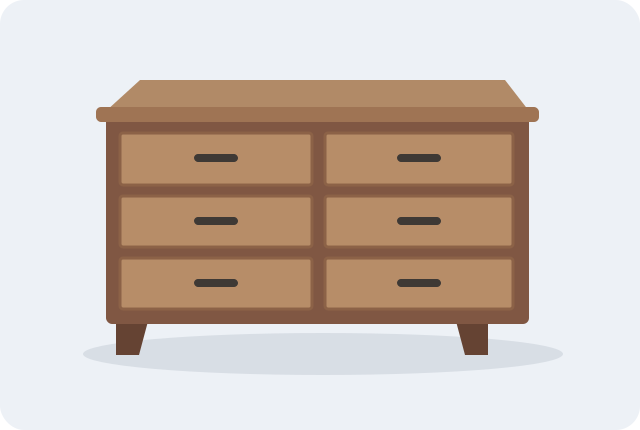
Sample item
Solid wood six-drawer dresser
Good condition · Furniture
Suggested list$95
Likely sale$80
Quick sale$65
Pricing, listing copy, and photos.
Everything with your item.
Everything with your item.
FROM YOUR FIRST PHOTO TO YOUR FINAL SALE
A clearer view of every flip.
Know where to start.
Identify an item from photos and get a resale estimate with a clear explanation.
Get your listing ready.
Review the title and description, keep every photo, and copy your listing when ready.
See what you earned.
Track listings, offers, expenses, and completed sales in one reselling workspace.
GET TO KNOW YOUR WORKSPACE
A little guidance for your next great find.
ROOM TO GROW
Find the plan for your next flip.
Choose more checks and capacity as your reselling grows.
Loading current plan allowances…
THE APPSBYALIENS COMMUNITY
A little help. A shared space.
Get FlipperTracker help, share feedback, and follow product updates in our shared Discord.
Choose FlipperTracker when you join, or find it later in Channels & Roles.
For private account or billing questions, contact support.
EXPLORE FLIPPERTRACKER
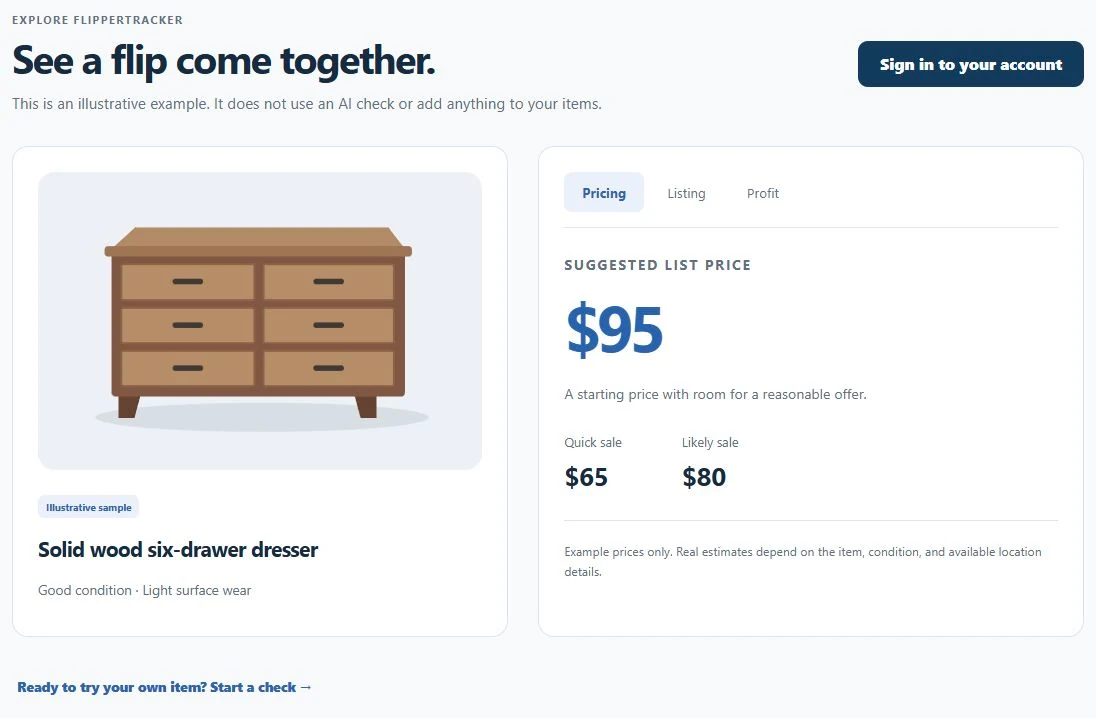
See a flip come together.
This is an illustrative example. It does not use an AI check or add anything to your items.
Illustrative sampleSolid wood six-drawer dresser
Good condition · Light surface wear
SUGGESTED LIST PRICE
$95A starting price with room for a reasonable offer.
Example prices only. Real estimates depend on the item, condition, and available location details.
A listing you can make your own.
Solid Wood Six-Drawer Dresser – Medium Brown Finish
Six-drawer wood dresser in good used condition. Medium-brown finish with light surface wear from normal use. All six drawers are included.
Review the condition, add dimensions, and confirm pickup details before posting.
Know what you earned.
- Final sale
- $80
- Purchase cost
- −$20
- Other costs
- −$5
- Net profit
- $55
Record the actual sale and costs to see your profit in Reports.
MEET YOUR RESALE COMPANION
See the potential.
Keep the whole story.
From “what could this sell for?” to “what did I actually earn?”, FlipperTracker keeps your research, photos, listing drafts, and sale records together.
Made for secondhand sellers, weekend flippers, and growing resale businesses.
ONE WORKSPACE, FROM FIND TO SALE
Less guesswork. Better records.
Use the estimate to make a decision, then keep track of what really happens.
Check the find
Add clear photos, identify the item, and confirm its condition. Review a resale estimate and the reasoning behind it before deciding what to list.
Photos and identification →Get the listing ready
Review the suggested title and description. Correct details, add measurements, and copy the final text into the marketplace you use.
Prepare your listing →Keep every item organized
Save your photos with the item. Record its status, storage location, purchase cost, listing URL, inquiries, and price changes.
Manage My items →Know what you earned
Enter the actual sale price and costs. Use Reports to review completed sales, net profit, and unsold inventory, then export your records.
Read your reports →A SIMPLE EXAMPLE
A $20 find. An $80 sale.
What’s the profit?
Subtract the purchase cost and $5 of other recorded costs. That leaves $55 in net profit. Recording the actual numbers is what makes your reports useful.
For your own items, include repairs, marketplace or payment fees, and mileage costs. Check every entry before relying on a total.
See how to record a sale →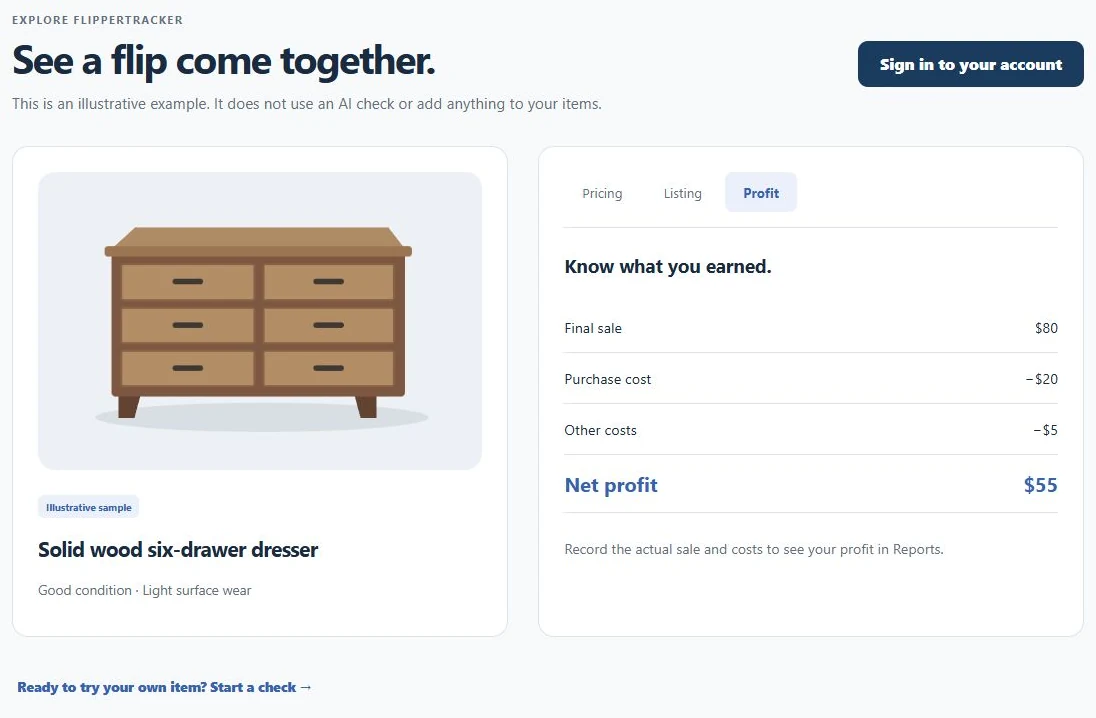
Helpful estimates. You make the final call.
Review before you post
AI can misidentify an item or miss wear, missing parts, and details that are outside the photo. Confirm the identity, condition, completeness, and listing text yourself.
You choose where to sell
FlipperTracker prepares the copy and tracks your progress. It does not publish listings to Facebook Marketplace, message buyers, or automatically import completed sales.
Grow at your own pace
Available checks, saved-item capacity, chat, and lot-check allowances depend on your plan and account access. Review current limits and billing options in My account.
YOUR FIRST FLIP, STEP BY STEP
Ready to see how it works?
Follow the screenshot walkthrough, or try the sample first.
THE APPSBYALIENS COMMUNITY
A little help. A shared space.
Get FlipperTracker help, share feedback, and follow product updates in our shared Discord.
Choose FlipperTracker when you join, or find it later in Channels & Roles.
For private account or billing questions, contact support.
THE FLIPPERTRACKER WALKTHROUGH
From first photo
to final sale.
Follow one item through the workflow. Learn what to check, what to save, and where to find it later.
STEP 01
Get familiar, then sign in.
Open Explore a sample to switch between Pricing, Listing, and Profit. It does not use an AI check or add an item to your account.
- When you’re ready, choose Sign in or My account.
- Use your AppsByAliens sign-in, or choose Create account to join. Verify your email, then sign in to start with the free plan.
- Open New check. Use Single item for one find, or Lot check for a group.
Before you start: have your photos, condition notes, and any brand or model information ready. You need an internet connection and account access for AI work.
STEP 02
Give the app a clear view.
Choose Tap to add photos to upload images, or Take a photo on a supported device. Use the photo limit shown in the app.
- Start with the entire item in good light against a simple background.
- Add close-ups of labels, model numbers, important details, and visible damage.
- Show included parts and accessories. Keep unrelated objects out of the frame.
Select Identify item after your photos are ready. If you already know what it is, choose Enter details instead. Manually entering details does not remove the account or usage requirements for AI pricing.
STEP 03
Confirm what the photos can’t tell you.
Review the identification before asking for pricing. Correct anything that is wrong and add the details that matter to a buyer.
- Check What is it?, Brand or model, Category, and Condition.
- Describe wear, damage, missing parts, repairs, included accessories, and whether you have tested it.
- Optionally add a ZIP code for location context. It is remembered on this device and can be changed.
- Choose Quick sale, Balanced, or Best price, then select See pricing & listing.
STEP 04
Read the estimate as a starting point.
Your result includes price guidance, confidence, and an explanation. Look at the reasoning as well as the number.
- Suggested list
- A starting asking price, with room for negotiation.
- Likely sale
- An estimated sale price if the description and condition are accurate.
- Quick sale
- A lower price intended to help the item move sooner.
- Maximum price
- A higher target that may require a more patient buyer. It is not a promised outcome.
Check comparable items. Condition, local demand, season, and negotiation affect the final sale. If the result is labeled a basic estimate, it uses category and condition rules rather than a successful AI analysis.
STEP 05
Make the listing yours.
Review the title and description carefully. Add measurements and pickup details, and remove any claim you cannot verify.
- Use Manual edit to change the title or description, then Save edit.
- When available, use the AI edit or chat controls to request a correction, such as “Mention the scratch on the top.” Review the revised text; AI actions can use your allowance.
- Copy the finished text and paste it into your marketplace listing. Upload the photos there and publish the listing yourself.
FlipperTracker does not automatically post to a marketplace or import messages and sales. Keep the app up to date as your listing progresses.
STEP 06
Save it, then keep it organized.
Select Save item & photos in the result. Open My items to find it again, then View details to continue working.
- Use search, sort, and the status filters to find an item. Saved lots have their own Lots tab.
- Record purchase cost, storage location, acquisition source, quantity, and tags in the item’s tracking fields.
- After you publish elsewhere, set the status to Listed, enter the actual listing price and date, and add the marketplace listing URL.
- Keep inquiries, offers, and price changes in the activity history. Set listing reminders if you want a prompt to review or relist.
Check the sync message. Signed-in saved items and photos sync to your account. An unfinished draft stays on its current device. If syncing fails, keep that device’s data and use Retry sync when you are back online.
STEP 07
Record what actually happened.
From My items, choose Mark sold, or open the item’s sale tracking. Enter the actual final sale price and days to sell, then choose Save sale. Use View details to enter or correct purchase cost, repairs, fees, and mileage.
Net profit = final sale price − purchase cost − repairs − fees − (miles × cost per mile)
Use a mileage cost that makes sense for your own records. The app’s preset is not tax advice. Check quantity and cost totals carefully when selling several units together.
STEP 08
See which flips are working.
Open Reports and select Last 30 days, Last 90 days, Last year, or All time.
- Review revenue, total costs, net profit, and unsold inventory.
- Compare categories and review your best and lowest-return flips.
- Use Export CSV for a spreadsheet or Print summary for a printable record. Keep your original receipts too.
A sale is missing? Confirm that the item is saved, marked Sold, has a final price, and has a sale date within the selected reporting period.
WHEN YOU BUY A GROUP
Use Lot check for a mixed haul.
In New check, choose Lot check, add photos, and select Analyze lot when available for your account. Review each identified item before saving.
- Correct names, quantities, conditions, and prices. Use Add missed item for something the AI overlooked.
- Use Merge selected for duplicate identifications. Check unidentified items and the source photos.
- Name the lot, record its purchase cost, and choose Save lot. Find it later under My items → Lots.
A lot estimate is not a guaranteed return. Confirm the contents and condition, and review how you record costs on individual items before using profit totals.
TAKE IT WITH YOU
Use it while you’re out finding items.
Open FlipperTracker in your phone’s browser. You can use the camera or upload existing photos. Where supported, your browser offers Install app or Add to Home Screen.
AI checks and cloud syncing need an internet connection. Draft recovery helps you continue an unfinished check on the same device; it does not make AI analysis available offline.
Find answers and troubleshooting tips →PUT IT INTO PRACTICE
Your next item is waiting.
Try the sample again, or start your own check.
THE APPSBYALIENS COMMUNITY
A little help. A shared space.
Get FlipperTracker help, share feedback, and follow product updates in our shared Discord.
Choose FlipperTracker when you join, or find it later in Channels & Roles.
For private account or billing questions, contact support.
A LITTLE HELP, RIGHT WHEN YOU NEED IT
Find the answer you need.
Find an answer about your first check, photos, pricing, saved items, or your account.
Getting started
What is FlipperTracker?
A resale workspace for checking items from photos, reviewing price guidance, preparing listing drafts, keeping photos and inventory organized, and recording sales and profit. Start with the introduction or follow the tutorial.
Can I try it without an account?
Yes. The illustrative sample is public and does not use an AI check or add anything to your items. AI features require sign-in and account access.
How do I create an account?
Choose Create free account on the landing page or Create account in My account. Enter your name, email, and a password of at least 14 characters. Verify your email, then sign in with AppsByAliens. You can start on the free plan without a card; owner approval is not required.
Does it work on my phone?
Yes. Use a supported mobile browser to take or upload photos. Where offered, use your browser’s Install app or Add to Home Screen option. Camera availability and installation options depend on your device and browser.
Can I use it offline?
AI analysis and cloud syncing need an internet connection. An unfinished draft can be retained on the same device, and some previously loaded screens may remain available. Reconnect before relying on syncing or starting AI work. Do not clear browser storage while you have an unsynced draft or changes.
Photos and identification
What photos should I take?
Use a full view in good light, then close-ups of the brand or model label, important parts, and wear or damage. Include accessories and missing-part context in your notes. See the photo walkthrough.
How many photos can I add?
Use the limit shown on the upload screen. If you reach it, remove an unhelpful image before adding another. Saving an item or lot keeps its attached source photos.
What if the AI identifies the wrong item?
Correct the name, brand or model, category, and condition in Confirm the details. Add a readable label photo or explain the correction in the available AI chat. Always review the result before pricing or posting.
Can I enter an item manually?
Yes. Choose Enter details instead in New check. You can type the item information and add photos later. Manual entry does not bypass AI access requirements or plan allowances for AI actions.
What happens to my uploaded photos?
Photos are resized for storage and analysis. Save the item or lot to retain its attached photos. Signed-in saved items and photos sync to your account; unfinished drafts and pending saves remain on the current device. Older items may only have their original thumbnail. See the Privacy Policy for processing details.
Can I change an item’s cover photo?
Open the saved item’s photo gallery and choose Use as cover on the photo you want. You can also add photos and open a photo to view or download it. Watch the save and sync confirmation when making changes.
Pricing and listings
Are the prices guaranteed?
No. Estimates depend on the identified item, condition, location context, and other available information. Local demand, presentation, season, and negotiation affect the final sale. Treat confidence and price guidance as decision aids, not appraisals.
What is the difference between list, likely, quick, and maximum prices?
Suggested list is a starting asking price. Likely sale estimates a typical outcome. Quick sale is a lower target intended to move sooner. Maximum is a higher target that may require patience. None guarantees a buyer or sale date. See the pricing example.
What does “basic estimate” mean?
A basic estimate uses category, condition, and sale-speed rules rather than a successful AI analysis. It may be shown when AI is unavailable or a request fails. Read the estimate label and explanation, and verify the result before relying on it.
Is a ZIP code required?
No. You can add a ZIP code for more relevant location context. It is remembered on the current device and can be changed or removed. Providing it does not guarantee that the estimate matches local sold listings.
Does FlipperTracker publish to Facebook Marketplace or eBay?
No. It prepares pricing and listing copy for you to review and paste into your chosen marketplace. You upload photos and publish there yourself. FlipperTracker does not automatically import buyer messages or completed sales.
Can I edit the title or description?
Yes. Use Manual edit in the item result, make your changes, then Save edit. AI-assisted edits and chat are also available when permitted by your account and remaining allowance. Review every revision before posting.
How does pricing improve?
Recorded completed sales can help calibrate future estimates by category and condition. Automatic adjustments need enough sales to avoid reacting to a single unusual transaction. Accurate final prices and condition details make those records more useful.
Items, lots, and profit
How do I save a check?
Choose Save item & photos in the result. The item then appears in My items. For signed-in saves, check the sync message so you know when the item and photos are available on your account.
What do Draft, Listed, Sold, and Unsold mean?
Draft means you are preparing the item. Listed means you have published it for sale. Sold records a completed sale. Unsold is for an item that did not sell or is no longer actively listed. Update the status yourself as the listing changes.
How is net profit calculated?
Net profit is the final sale price minus purchase cost, repairs, marketplace or payment fees, and mileage cost. Mileage cost is miles driven multiplied by your entered cost per mile. The suggested list price is not revenue. Enter actual amounts and review costs when quantities are greater than one.
How do I mark an item sold?
In My items, choose Mark sold, enter the final sale price and days to sell, then choose Save sale. Open View details to review the sale date and enter purchase cost, repairs, fees, and mileage. See the sale walkthrough.
Why is my sale missing from Reports?
Check that the item is saved, its status is Sold, it has a final sale price, and its sale date falls within the selected period. Try All time. If you are viewing another device, also confirm that the original device finished syncing.
Can I export my records?
Yes. In Reports, choose a period and use Export CSV for a spreadsheet, or Print summary for a printable record. Keep receipts and original records alongside your exports. Reports are not a substitute for tax filing advice.
What is Lot check?
Lot check helps you review a group of items from photos. Confirm identifications and quantities, add anything missed, merge duplicates when appropriate, enter the lot purchase cost, and save. Reopen it from My items → Lots. Available lot checks depend on your account and plan.
Do reminders renew my listing automatically?
No. Reminders prompt you to review a price, renew or relist, or follow up on a listing with no inquiries. You make the changes on the marketplace. Email and push reminders require sign-in and supported settings; browser push also needs permission.
Account, plans, and help
Where can I see my limits or upgrade?
Open My account to review your current plan, remaining allowances, and available billing options. Limits can differ for AI checks, saved items, chat, and lots. Review the displayed price and billing interval before confirming a paid plan.
How do I manage or cancel a subscription?
Use the subscription management option shown in My account. Purchases made through Google Play are managed through Google Play; web subscriptions use the available web billing management flow. Review the provider’s confirmation for when any change takes effect.
My Google Play purchase is not showing. What should I do?
Open the installed Android app with the Google Play account used for the purchase, then use Restore Google Play purchase in the available billing controls. If it still does not appear, contact support with the purchase details. Do not buy a second subscription just to troubleshoot.
Where are my items on another device?
Sign in to the same AppsByAliens account. Saved items and photos appear after successful syncing. Unfinished drafts stay on their original device. Check that device for a pending sync message before clearing any browser data.
What should I do if an upload, check, or sync fails?
Check your connection and the service status. For photos, try a clear JPG or PNG within the limit shown in the app. For AI requests, check account access and remaining usage. For syncing, keep the original data and select Retry sync when offered. If the problem continues, send the error text and steps to support.
How do I delete my account?
Use the account deletion page and follow its confirmation steps. Export records you want to retain first. Review any active subscription separately in its billing provider before assuming that deletion changes billing.
How do I contact support?
Use Contact, the Feedback button, or support@flippertracker.com. Include what you were trying to do, the visible error, and your device or browser. Never send your password. You can also join the Discord community.
No matching questions.
Try a shorter search or choose All questions. You can also contact support.
STILL NEED A HAND?
We’re here to help.
Tell us what you were trying to do and what happened.
THE APPSBYALIENS COMMUNITY
A little help. A shared space.
Get FlipperTracker help, share feedback, and follow product updates in our shared Discord.
Choose FlipperTracker when you join, or find it later in Channels & Roles.
For private account or billing questions, contact support.
Trust center
Privacy and security
FlipperTracker uses encrypted HTTPS connections, secure account sessions, server-side API credentials, request throttling, and automatic PostgreSQL backups.
Account protection
Passwords are processed by the authentication service and are not displayed to administrators. You can review signed-in devices, revoke other sessions, change your password, or delete your account.
Data controls
My items sync only after you sign in. You can remove individual items, clear items, export your sales records, or delete the account and its saved data.
Operational safeguards
Administrative actions are recorded, sensitive endpoints require authorization, and automated monitoring reports database, backup, storage, email, AI, and billing readiness.
Responsible estimates
Generated prices and listings require seller review. FlipperTracker does not guarantee item authenticity, safety, legality, or final sale value.
Service status
Checking FlipperTracker…
Connecting to the service.
Contact support
How can we help?
Send a message here or email support@flippertracker.com.
THE APPSBYALIENS COMMUNITY
A little help. A shared space.
Get FlipperTracker help, share feedback, and follow product updates in our shared Discord.
Choose FlipperTracker when you join, or find it later in Channels & Roles.
For private account or billing questions, contact support.
Account and data controls
Delete your FlipperTracker account
You can permanently delete your FlipperTracker account and its associated data. This action cannot be undone.
How to request deletion
- Select Open account deletion below.
- Sign in to the FlipperTracker account you want to delete, if prompted.
- In My Account, find Delete account, type DELETE, and confirm.
- If an email confirmation is sent, open it to finish the deletion.
Data that is deleted
Your account and profile, items and image previews, sale tracking, listing reminders, preferences, and active sessions are deleted.
Subscriptions and retained records
Cancel an active Google Play subscription before deleting your account. Website subscriptions are canceled as part of the deletion process. Limited billing, security, fraud-prevention, or legal records may be retained where required, but they are not used to keep your account active.
If you cannot access your account, contact support@flippertracker.com from the email address associated with it.
Account security
Choose a new password
Enter a new password for your FlipperTracker account.
Effective September 8, 2026
Privacy Policy
FlipperTracker helps people estimate resale prices, prepare listings, and track sales. This policy explains the information used to provide the service.
Information we collect
We collect account details such as your name, email address, login provider, and account security records. When you use the service, we may process item descriptions, ZIP codes, uploaded photos, AI chat messages, generated listings, items, prices, costs, sale status, and profit information.
How information is used
We use this information to authenticate accounts, analyze items, generate listing suggestions, synchronize items, provide customer support, protect the service, and improve pricing quality.
Product analytics and feedback
We record limited in-app events such as pages opened, checks started or completed, auto-fill success or failure, saved items, listing status, report exports, and upgrade-page visits. These records may include an account identifier, category, request identifier, browser information, and technical error stage. Feedback and bug reports include the information you submit and may include the current page, browser, account, and latest request identifier so we can investigate problems. We do not use third-party advertising trackers.
Photos and AI processing
Photos and chat messages selected for AI analysis are sent securely to our AI service provider to identify the item, produce an estimate, and apply requested listing changes. Saving an item or lot stores all attached photos in an optimized size, together with the item-specific chat history. Signed-in saves sync these photos to your account. Unfinished drafts and pending uploads may also remain in this browser until you discard or remove them. Item photos are accessible through your account; removing their last item or lot reference removes them from active cloud storage. Existing backups expire under our backup retention schedule.
Service providers
We use service providers for hosting, database storage, authentication, Google sign-in, transactional email, AI analysis, and subscription billing. Stripe processes website payments and Google Play processes Android in-app payments. FlipperTracker stores the billing provider, subscription status, billing-period identifiers, and the purchase references needed to verify access, but does not store complete card numbers.
Support correspondence
Messages sent to our support address, including your email address, message content, and attachment names, may be stored securely with your support conversation so we can respond and maintain service records. Email attachments are not copied into FlipperTracker storage.
Cookies and security
FlipperTracker uses essential cookies to keep you signed in and protect account sessions. We use reasonable technical safeguards, but no online service can guarantee absolute security.
Retention and your choices
Account and saved-check data is retained while your account remains active. You can update account information, clear items, or permanently delete your account from My Account or the account deletion page. Some limited records may be retained when required for security, fraud prevention, or legal compliance.
Children
FlipperTracker is not directed to children under 13, and we do not knowingly collect their personal information.
Contact
Questions about this policy can be sent to support@flippertracker.com.
Effective September 8, 2026
Terms of Service
By using FlipperTracker, you agree to these terms.
What the service provides
FlipperTracker provides AI-assisted resale estimates, listing suggestions, and sales tracking tools. Estimates are informed opinions, not appraisals or guarantees of value, demand, safety, authenticity, legality, or sale results.
Your responsibilities
You are responsible for reviewing listing content, accurately describing items, disclosing defects, confirming recalls or safety restrictions, following marketplace rules, and complying with applicable laws. Do not use the service to sell prohibited, stolen, counterfeit, unsafe, or unlawful items.
Your content
You retain ownership of the photos and information you submit. You give FlipperTracker permission to process that content only as needed to operate, secure, and improve the service.
Accounts
Keep your login information secure and provide accurate account information. You are responsible for activity through your account. We may suspend access used for abuse, fraud, attacks, or violations of these terms.
Plans and subscriptions
Free, Plus, and Pro plans include the usage limits shown in the service. Paid subscriptions renew automatically through the provider used for purchase, either Stripe on the website or Google Play in the Android app, until canceled. You can reach the applicable subscription-management page from My Account. A cancellation scheduled for the end of a billing period keeps paid access through that period. Except where required by law, partial billing periods are not refunded.
Availability and changes
The service may change, experience interruptions, or contain errors. Features may be added, limited, or removed as the product develops. Material updates to these terms will be posted on this page.
Disclaimer and limitation
The service is provided as available without warranties to the extent permitted by law. FlipperTracker is not responsible for losses arising from pricing decisions, transactions, buyer or seller conduct, marketplace actions, or reliance on generated content.
Ending your account
You may delete your account from My Account or the account deletion page. We may terminate accounts that materially violate these terms or threaten the service or its users.
Contact
Questions about these terms can be sent to support@flippertracker.com.